Knowledge Graph System
The Knowledge Graph system transforms your notes into an interconnected web of ideas, enabling visual navigation and discovery of relationships between your documents.
Overview
The knowledge graph system consists of three main components:
- Knowledge Index - Parses and indexes wiki-links and tags from your notes
- Graph Visualization - Interactive force-directed graph showing note relationships
- Backlinks Panel - Displays which notes link to the current document
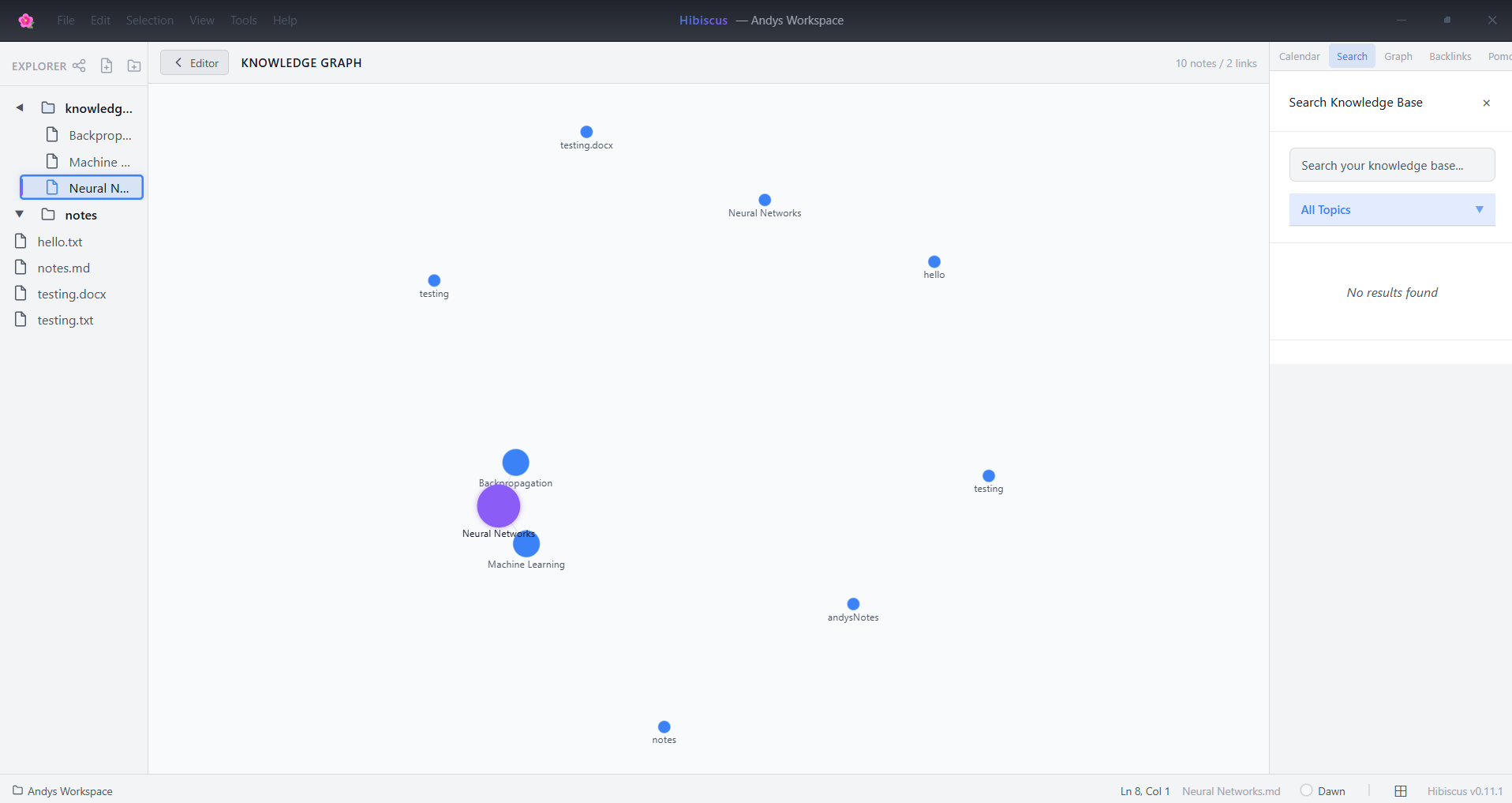
The knowledge graph provides an intuitive way to navigate and discover relationships in your notes.
Creating Links
Wiki-Link Syntax
Create connections between notes using double-bracket syntax:
See [[Concept Mapping]] for more details.
Related: [[Mind Mapping Techniques]] and [[Knowledge Management]]
Tag Support
Organize notes with hashtags:
Graph Visualization
Accessing the Graph
Toggle between editor and graph view using:
- Keyboard Shortcut:
Ctrl+G - View Menu: "View → Knowledge Graph"
- Graph Button: In the right panel when knowledge mode is active
Graph Features
- Interactive Nodes: Click any note node to open it in the editor
- Node Sizing: Larger nodes indicate more connections
- Active Highlighting: Current file appears with a distinct glow
- Zoom & Pan: Mouse wheel to zoom, drag to pan
- Node Dragging: Reposition nodes manually
- Tooltips: Hover to see note name and connection count
Visual Elements
- Node Color: Uses theme accent colors
- Node Size: Proportional to connection degree (4-14px radius)
- Edge Thickness: Consistent 0.6px lines
- Labels: Shown when zoomed in sufficiently (scale > 0.6)
Backlinks Panel
The backlinks panel shows all notes that reference the current file, helping you discover:
- Incoming Links: Which notes depend on this content
- Context Discovery: How this note fits into your knowledge network
- Relationship Mapping: Bidirectional relationships between concepts
Backlinks Features
- Real-time Updates: Automatically updates as you edit
- Click to Navigate: Open any backlinked note instantly
- Deduplication: Prevents duplicate entries
- Empty States: Clear messaging when no backlinks exist
Performance & Architecture
Incremental Updates
The knowledge system uses efficient incremental updates:
- Single File Parsing: Only re-parses changed files
- Backlink Rebuilding: Updates only affected relationships
- Version Tracking: Memoization prevents unnecessary re-renders
Memory Management
- In-Memory Index: Fast lookups without disk I/O
- Deduplication: Prevents duplicate links and tags
- Guard Conditions: Prevents concurrent rebuild operations
Supported File Types
The knowledge system indexes:
- Markdown Files (
.md,.markdown) - Text Files (
.txt) - Future: PDF and DOCX support (planned)
Link Resolution
Name-Based Resolution
Links are resolved by note name (case-insensitive):
Unresolved Links
Links to non-existent notes are safely ignored and won't break the graph.
Self-References
Self-referencing links are automatically filtered out.
Keyboard Shortcuts
| Shortcut | Action |
|---|---|
Ctrl+G |
Toggle between editor and graph view |
Esc |
Return to editor from graph view |
Integration with Search
The knowledge graph integrates with Hibiscus's search system:
- Indexed Content: Wiki-links and tags are searchable
- Contextual Results: Search results show note relationships
- Navigation: Jump from search to graph visualization
Troubleshooting
Empty Graph
If your graph appears empty:
- Ensure you have notes with wiki-link syntax
- Check that files are indexed (
.md,.txt) - Verify links use correct
[[target]]syntax
Missing Backlinks
If backlinks don't appear:
- Confirm the linking note is saved
- Check link syntax matches target note name exactly
- Ensure both files are supported formats
Performance Issues
For large knowledge bases:
- The system uses incremental updates automatically
- Graph rendering is canvas-based for better performance
- Consider breaking very large notes into smaller, linked concepts
Best Practices
Link Organization
- Descriptive Names: Use clear, descriptive note names
- Consistent Naming: Maintain consistent naming conventions
- Hierarchical Structure: Create parent-child relationships
Graph Navigation
- Hub Notes: Create overview notes that link to many concepts
- Cross-References: Link related concepts bidirectionally
- Tag Strategy: Use tags for categorical organization
Content Structure
- Atomic Notes: Keep notes focused on single concepts
- Link Density: Balance between too few and too many links
- Regular Maintenance: Review and update links periodically
Technical Details
Data Structures
interface IndexedNote {
  path: string
  name: string
  links: string[]   // [[wiki-links]]
  tags: string[]    // #hashtags
}

interface GraphNode {
  id: string
  label: string
}

interface GraphEdge {
  source: string
  target: string
}
Parsing Regex
- Wiki Links:
/\[\[(.*?)\]\]/g - Tags:
/(^|\s)#([a-zA-Z0-9\-_]+)/g
Force Graph Configuration
- Engine: react-force-graph-2d
- Physics: D3 force simulation with custom tuning
- Rendering: Canvas-based for performance
- Theme Integration: CSS variable-driven colors